Open topic with navigation
Assign a New Shortcut Key for Step Sign-offs
- In Word 2007, left-click the Office
button and select Word Options.
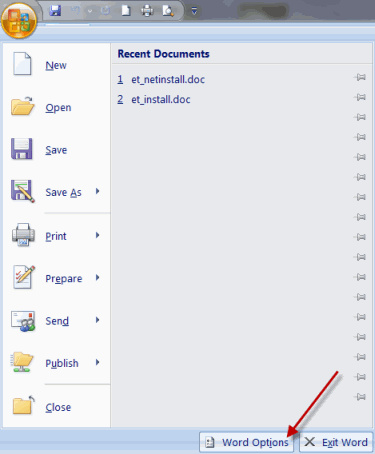
- Select Customize from the
left frame of the screen that opens.
- At the bottom of the next screen, click the Customize
button to the right of "Keyboard Shortcuts."
The Customize Keyboard screen
opens:
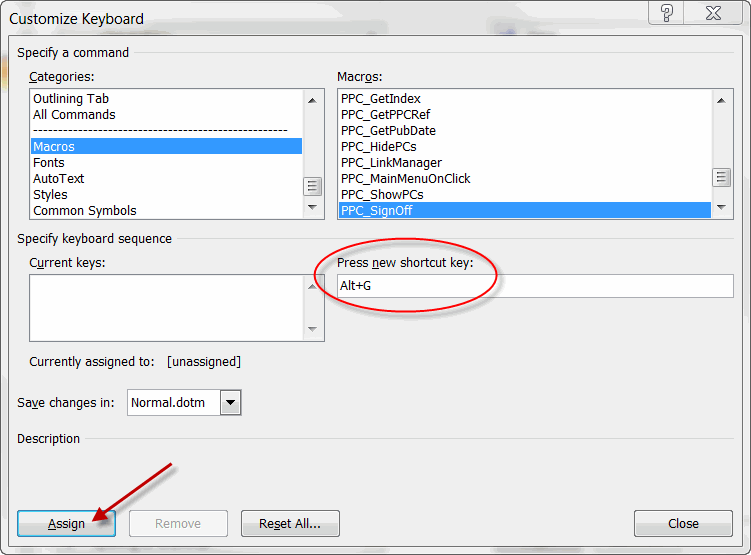
- From the Categories drop-down
menu, scroll down and select Macros.
- From the Macros drop-down
menu, scroll to PPC_SignOff.
(To assign a shortcut key for Step
Sign-off NA, select PPC_SignOffNA.)
- Place your cursor in the Press New
Shortcut Key field.
- Perform the shortcut key combination you want to assign to this macro.
Warning:
If you assign a new key combination that it is currently used for an existing
Word feature, the existing shortcut key will be overridden.
- If you want this keystroke to apply to all documents, select Normal.dotm under Save
changes in. Otherwise, select the document.
Note:
To use the new shortcut for all Word-based Practice Aids, select Normal.dotm.
- Click Assign. (The
new shortcut combination will appear in the Current
keys box.)
Restore Word Shortcut Key
Assignments to the Original Settings
- Left-click the Office button
and select Word Options.
- Select Customize.
- Click the Customize button
to the right of "Keyboard Shortcuts."
- In the Save changes in box
on the Customize Keyboard screen,
click the document name or template that contains the shortcut key assignments
you want to restore.
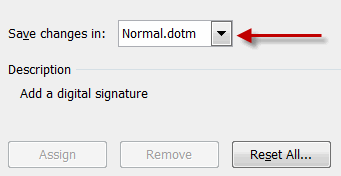
- Click Reset All.
Open topic with navigation