You are here: Managing Documents > Notes > Understanding Displaced Notes
Understanding Displaced Notes
Many documents in Checkpoint are dynamic and are updated periodically. If you highlight text in a document, and later come back to the document and find that the content you highlighted has changed significantly, your highlight may no longer match the original content. If this happens, Checkpoint adds a Displaced Notes message in the document.
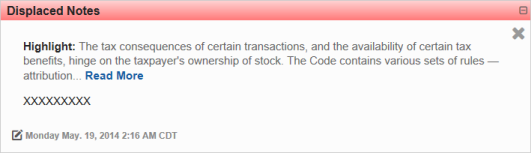
Here are some features of displaced notes:
- The displaced notes message includes any text you highlighted previously and the date and time you created the highlight.
- You can expand the displaced note message box or collapse it using the button in the upper right corner.
- Click the Read More link to see the full text in a pop-up window.
- If you are in a subtopic, the displaced note appears at the top of the subtopic.
- If you are in a full topic, the displaced note is included within the specific subtopic that has the note.
- The displaced note also appears on the Notes screen, accessed from the top toolbar.
- You can delete a displaced message from the subtopic level by clicking the X on the right side of the message box. However, you cannot delete the message from the full topic level. When you delete a displaced note, you will see a message asking you to confirm the deletion.
 Related Topics