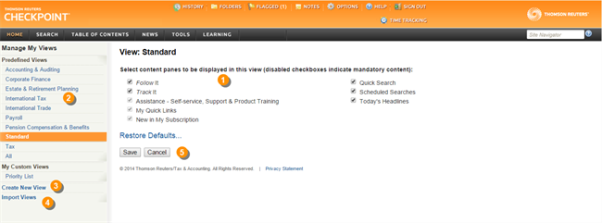
The Manage My Views screen opens when you click the Manage my views tool next to the Current View field on the Home screen. Here you can change the layout and content of a predefined Home screen view, create a custom view, or import another user's custom view.

|
Change the content to be displayed on the current predefined view or your custom view by selecting or clearing content pane titles. Mandatory content pane check boxes are disabled and cannot be cleared. |

|
All of the predefined views are listed on the left navigation bar. Click a predefined view to modify its contents. Click All to modify a view that offers content panes from all of the other views. |

|
Click Create New View to build a Home screen view tailored to your specific needs. Select from a wide selection of content panes and provide a unique name for the view. |

|
Import another user's custom view by clicking Import Views. You have the option to include or exclude the user's Quick Links. |

|
Click Save to preserve a modified view, or abandon the modified view by clicking Restore Defaults or Cancel. |

|

|

|