
The permalink feature allows you to generate a permanent link directly to a document or document section within Checkpoint. You can then save this link as a bookmark or shortcut that lets you return to the content. The Show permalinks icon is located in the document tools at the top of the Document screen.
To create a permalink:
On the document tools, click the Show permalinks icon.
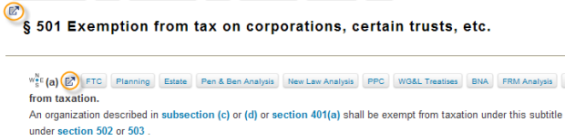
Any permalinks in the document are displayed.
|
Select the permalink icon in the document and section you want to save.
A Permanent Document Link window displays the permalink URL for you to save as a browser bookmark or shortcut to return to the document/section in the future.
Note: Some documents contain multiple permalink icons, each displaying at a different section, allowing you to save a link directly to a section in the document.